
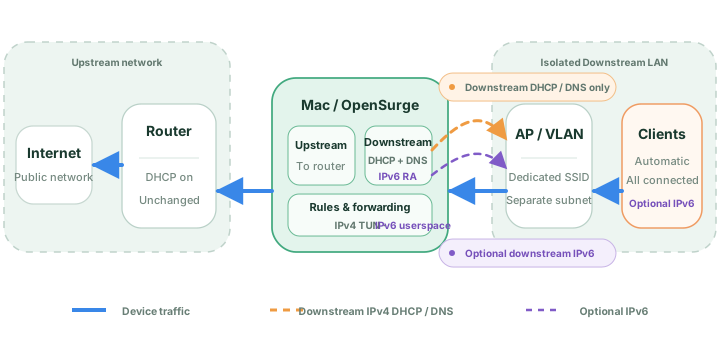
Choose a genuinely separate network
Use this mode when you can provide a downstream network segment that the Mac can reach through its own interface. A USB Ethernet adapter connected to a dedicated access point is one possible layout; a properly configured VLAN is another.
A different Wi-Fi name alone does not create a separate network. If both SSIDs bridge into the same broadcast domain, DHCP announcements can still reach both. Confirm the actual AP, switch and VLAN setup before enabling downstream DHCP.
Prepare the upstream and downstream paths
First verify the Mac’s upstream internet connection. Give the downstream LAN a subnet that does not overlap the upstream LAN or other networks you need to reach. Keep the upstream router’s DHCP service enabled on its own segment.
For example, an upstream LAN using 192.168.1.0/24 could be paired with a downstream LAN using 192.168.50.0/24 and a Mac downstream address of 192.168.50.1. These are example values: check your actual network before choosing them.
- Use a stable IPv4 address for the Mac on the downstream interface.
- Keep the Mac address and other fixed addresses outside the DHCP allocation pool.
- Provide only one intended DHCP server on the downstream segment.
- Ensure the AP forwards client traffic to the Mac; client isolation must not block the gateway.
Configure OpenSurge while the gateway is stopped
In Network, choose Isolated downstream LAN. Select the downstream LAN interface and the upstream network interface, then enter the downstream gateway address, prefix length and DHCP range. This topology is configured manually; check every interface and address before starting.
Prepare the nodes and routing rules you need. You can import a profile or use Global Extension, and preview policies while the gateway is stopped. Start with IPv4; enable experimental downstream IPv6 only after reviewing its separate topology requirements.
Validate one client before connecting more devices
Connect one recoverable test device to the downstream network and start the gateway. Renew its DHCP lease, then check that its address belongs to the intended pool and its gateway and DNS point to the Mac.
Resolve a hostname and open an HTTPS service without an explicit proxy. Inspect the device in OpenSurge, its matched policy and the observed outbound chain. Add a device-specific exit only after the basic path works. A healthy Mac or one DHCP lease is not proof of the complete client path.
Plan how devices reconnect when the Mac stops
Devices that use the Mac as their gateway depend on it staying awake, powered and connected. Stop through OpenSurge so it can release the network state it owns. The upstream router’s DHCP service remains on its separate segment.
To restore internet access for downstream devices after stopping, reconnect them to a working upstream network or provide another deliberately configured downstream gateway and DHCP service. Renew their network settings; old leases do not automatically select a replacement gateway.
FAQ
Questions people ask before changing the network
Must I disable DHCP on my main router?
No. In a genuinely separate downstream LAN, the upstream router keeps DHCP on its own segment. OpenSurge supplies DHCP only to the intended downstream segment. Do not bridge the two DHCP broadcast domains together.
Does a second SSID automatically qualify?
No. An SSID can share the same network as another SSID. Check the AP and VLAN configuration and ensure there is a separate downstream segment connected to the Mac.
Does “isolated” guarantee a security firewall between every network?
It describes the downstream topology. Access restrictions depend on routing, firewall and network configuration; the name alone is not a guarantee of security isolation.
Is downstream IPv6 required?
No. Start with the documented IPv4 path. Downstream IPv6 takeover is optional and experimental, and does not create native public IPv6 connectivity.